
Teacher
Today we will play a profiling game. It can be played either individually or in pairs. It is recommended that you divide the students into pairs at this stage, as the social media platform will be used in pairs later.
- Each player (one student or a pair) must have access to a phone, tablet or computer and a suitable internet connection.
- There are assignments before and after the profiling game. Distribute the assignment sheets to the students either on paper or use the Google Classroom / M365 Teams application, for example.
- Follow the instructions and it will go well!
- Downloadable worksheets for this lesson:
See the instructions for using the profiling game on the help page! The profiling game is a simple application. However, it is worth reading the instructions before using the application.
1.
Let's get started!
In the video below, Jussi Koivisto explains three key concepts from a social media perspective: a) data b) profile c) recommender. This educational material covers these concepts in different ways from start to finish.
Teacher, show the introductory video at this point
Task
Teacher, share the Worksheet 1: Draw conclusions from the data with the students.
Think back to the video you watched a moment ago.
What did Jussi say about advertising targeting? He had an example of an online store towards the end of the video.
Study worksheet 1
Study the tasks in the “Draw conclusions from data” worksheet and think about how you would answer the questions.
Fill out worksheet 1
Complete both tasks in worksheet 1 “Draw conclusions from the data”
2.
Let's play a profiling game!
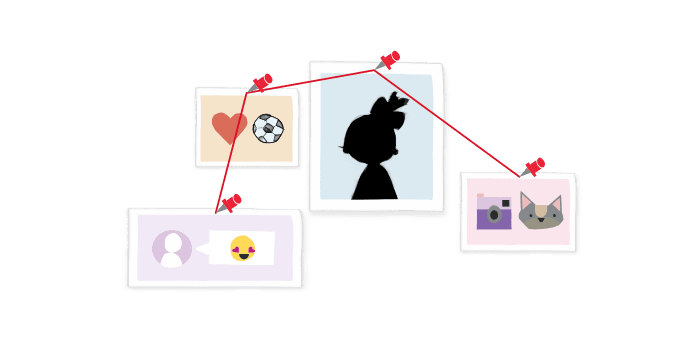
Teacher, introduce the profiling game using a video
Now it's time to solve the mystery of the mystery person! Are the players ready?

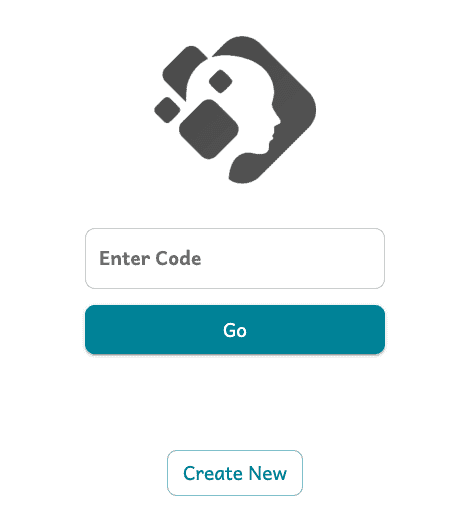
A screen similar to the one shown in the image will open on your computer. Create a new game event by pressing “create new”
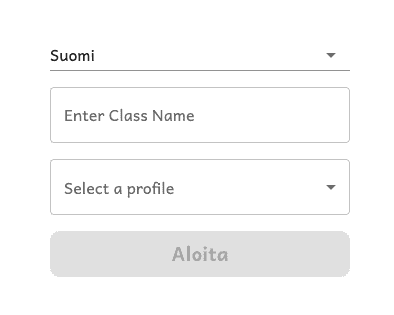
Enter the name of your class “e.g. Keken's third grade” and select the only available profile from the profile menu. Press start!
Task
Open the profiling game on your device
Scan the QR code or enter the code at https://classroom.gen-ai.fi
Give the player a name.
Type the player's name in the field that opens.
Wait for the teacher to start the game.
When all players are present in the profile game, the teacher starts the game
Teacher
Teacher, start the game when the students are there.
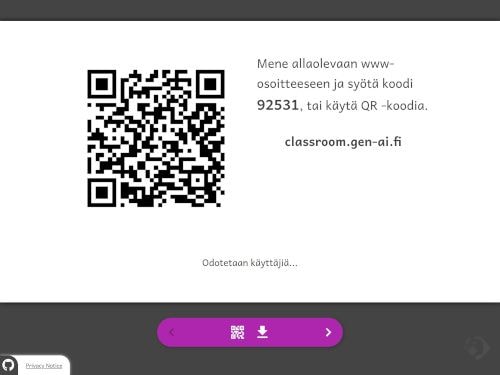
When all students are present, start the game by pressing the arrow on the right side of the bottom bar. You can move between the clues using the arrow.
NOTE! The QR code and code in the picture are not used! They are examples!
Task
Teacher, share the Worksheet 2: Data in social media with the students.
Study worksheet 2
Study the tasks in the “Data in social media” worksheet and think about how you would answer the questions.
Fill out worksheet 2
Complete all tasks in worksheet 2 “Data in social media”
Compare your answers with at least one student.